
-
CarryMap Builder
- About CarryMap Builder
- Installing CarryMap Builder
- Licensing
- Registering CarryMap Builder license
- Creating mobile map from ArcGIS Pro project
- Managing identification templates
- Extracting map by selected polygon layer
- Merging multiple CMF2 maps
- Converting CMF to CMF2
- Generating map reports
- Importing and exporting data in GeoPackage format
- Setting CarryMap Builder
- Support
Setting mobile map protection
No need to worry about your data integrity, especially if it goes about sensitive data, as you can always prevent its unauthorized distribution by managing access to your mobile map with one of the provided protection options or with all of them at a time.
You can protect your mobile map with password, or allow access for selected devices only, or set map availability date specifying period when your mobile map will be available for users. Thus, each time the users open your mobile map in CarryMap app, they will be asked to either enter the password or the device ID, or the map will become unavailable after specified date, respectively.
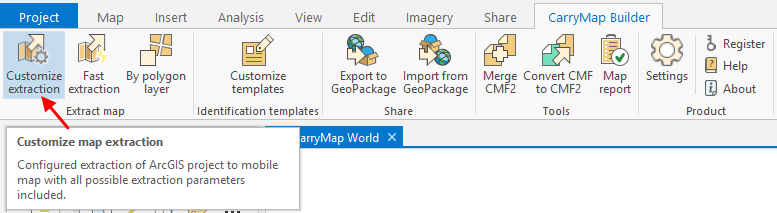
To specify map protection settings, press Customize extraction button on the CarryMap Builder tab.
|
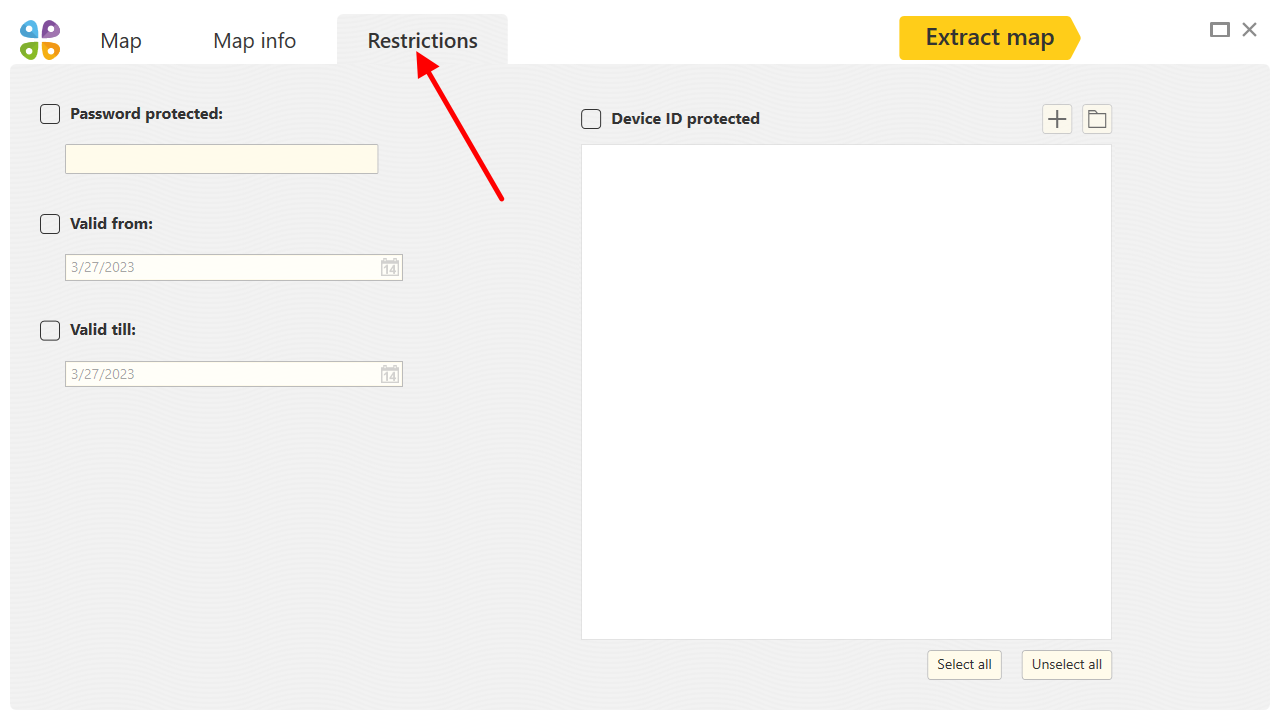
Go to Restrictions tab.
|
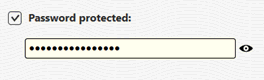
To protect your map by password, check Password protected . In the appeared dialog enter the password.
|
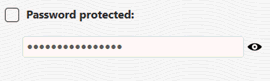
To cancel protection by password setting, uncheck Password protected option.
|
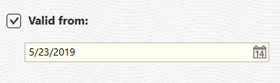
To protect you map by availability date, check Valid from .
|
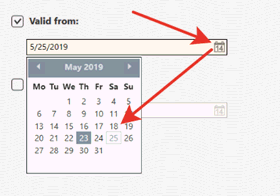
This will be the date starting from which your map will be available for use. By default the current date is suggested, but you can change it pressing the calendar icon and selecting the needed date.
|
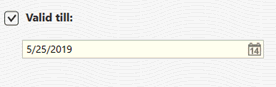
To set the date from which your map will not be allowed for use, check Valid till .
|
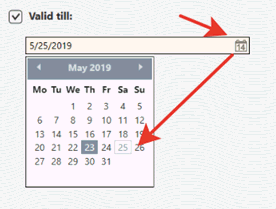
By default the current date is suggested, but you can change it pressing the calendar icon and selecting the needed date.
|
To cancel protection by map availability date, uncheck Valid from and Valid till options.
To allow opening your map on selected devices only, check Device ID protected option.
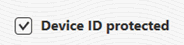
|
Press
 and enter the device name (device owner name, for example) and device ID.
You can allow opening your map on multiple devices, to do so press
and add as many devices as needed same as described above.
For your convenience, you can download the pre-arranged list of authorized devices in Excel or CSV format, to do so, press Download devices list button.

|
In the appeared window select the needed file and press Open .
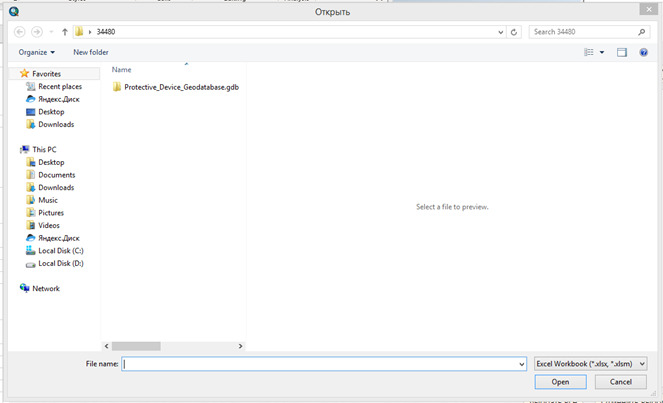
|
In the appeared table select columns containing the devices owners names and devices IDs.
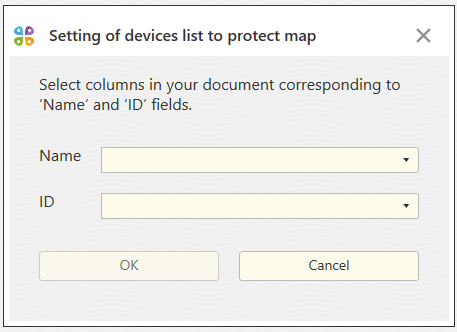
|
Press ОК.
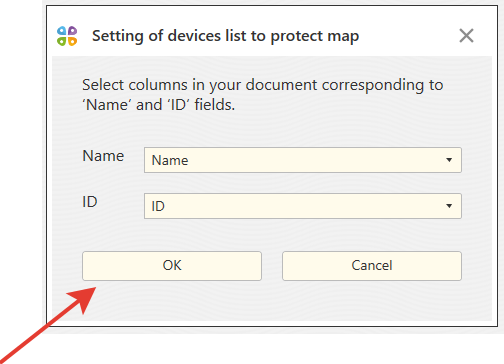
|
In the appeared window you will see the names and IDs of all devices from your list.
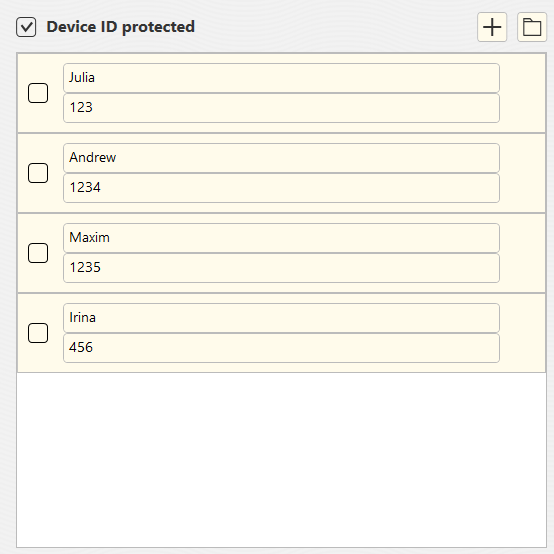
|
Check the boxes near the devices that should be authorized to open your map or press Select all to select all devices at a time.
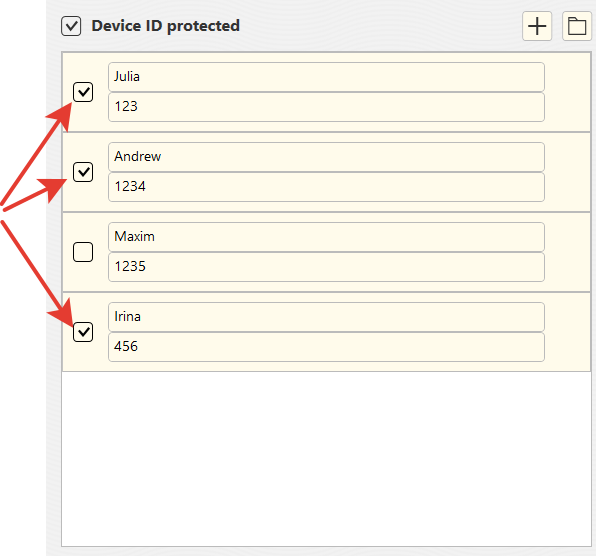
|
To delete added device, press cross icon near its name.

|
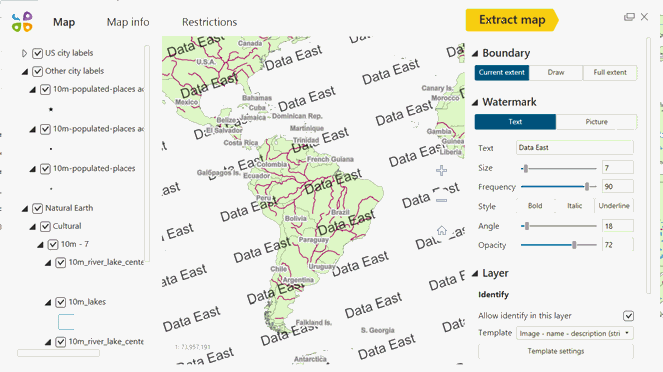
You can demonstrate your corporate identity and protect your data from unauthorized copying by adding watermarks to your mobile maps. These can be either text or any image with specified transparency and rotation angle settings. To add watermark on map, go to Map tab, Watermark section.
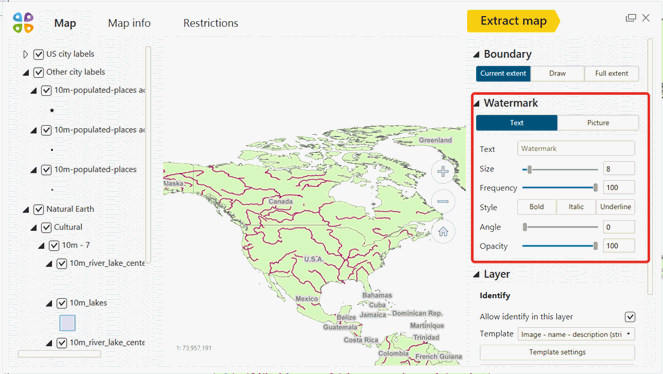
|
To add text as the watermark, press
 and in the appeared window
 enter your text, set its size, display frequency, style, rotation angle and opacity.
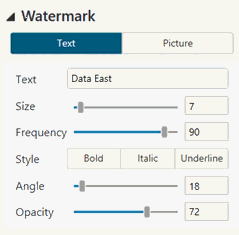
|
In CarryMap Builder preview window you will see how your watermark will be displayed on map.
|
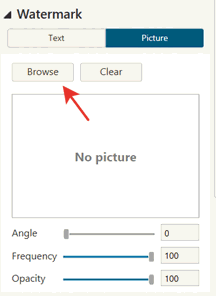
To add picture as the watermark, press
 and in the appeared window press
Browse
.
and in the appeared window press
Browse
.
|
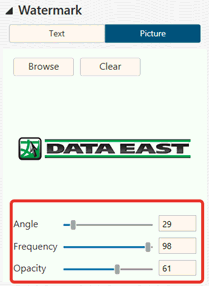
In the appeared dialog select picture and it will be displayed in the preview window. Select all needed settings: display frequency, rotation angle and opacity.
|
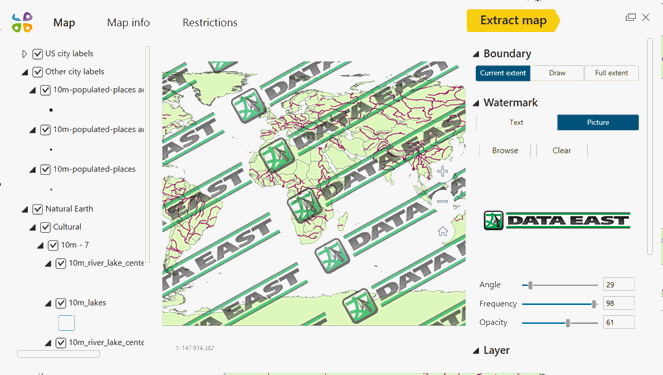
In CarryMap Builder preview window you will see how your watermark will be displayed on map.
|