
-
CarryMap for Android
- About the app
- Application terminology
- Section 1. Getting started and configuring the app
- Section 2. Application data
- Section 3. Opening maps and creating projects
-
Section 4. Creating and editing features
- About GeoPackage
- Creating new features
- Creating features by coordinates
- Creating point feature by photo
- Creating points with single tap
- Recording track
- Selecting symbol when creating feature
- Adding attachments to feature
- Filling in fields using QR code
- Editing features
- Adding and viewing Z coordinates
-
Section 5. Additional functionality
- Track log
- Use as a destination point
- Searching features
- Measuring on the map
- Circular ruler
- Creating marks
- Creating bookmarks
- Save map extent
- Selecting map scale
- Finding current location
- Sharing location information
- Displaying information from GPS/GLONASS receiver in the map window
- Use external GPS receivers
Page of adding data and maps
CarryMap allows you to open maps in CMF2 or MBTILES formats and projects based on them directly from the start page sections of the application. Data from other supported formats and online mapping services can be added to an open map or project as additional layers.
All data that can be added to a map or project is presented on the Page for adding data and map layers. To go to the page, click
 in the main menu of the Map window (see
Adding maps and data to project
).
in the main menu of the Map window (see
Adding maps and data to project
).
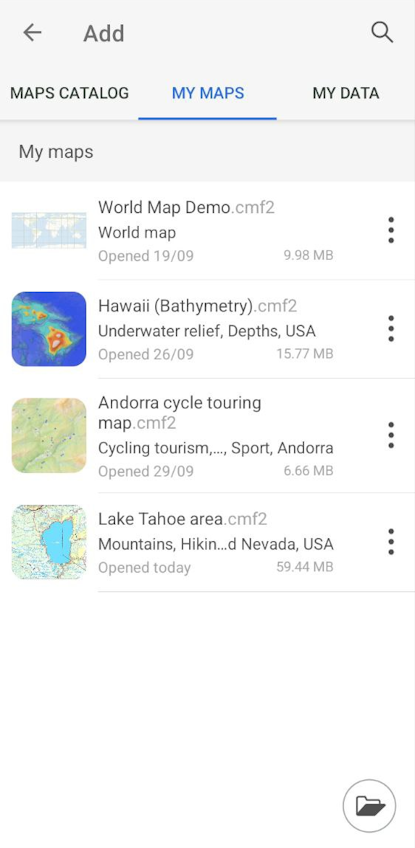
The page for adding data and map layers consists of three sections:
- Map Catalog – maps are displayed in the format .CMF2, available for download, as well as online mapping services;
- My Maps – displays all maps in CMF2 and MBTILES formats downloaded and added by the user and stored in the application folder on your device;
- My data – displays data in GeoPackage, KML/KMZ, GPX, SHP formats stored on the device in the application folder.
|