
-
CarryMap for Android
- About the app
- Application terminology
- Section 1. Getting started and configuring the app
- Section 2. Application data
- Section 3. Opening maps and creating projects
-
Section 4. Creating and editing features
- About GeoPackage
- Creating new features
- Creating features by coordinates
- Creating point feature by photo
- Creating points with single tap
- Recording track
- Selecting symbol when creating feature
- Adding attachments to feature
- Filling in fields using QR code
- Editing features
- Adding and viewing Z coordinates
- Section 5. Additional functionality
Application settings
You can access the application Settings from the menu on the start page of the application or from the main menu in the map window.
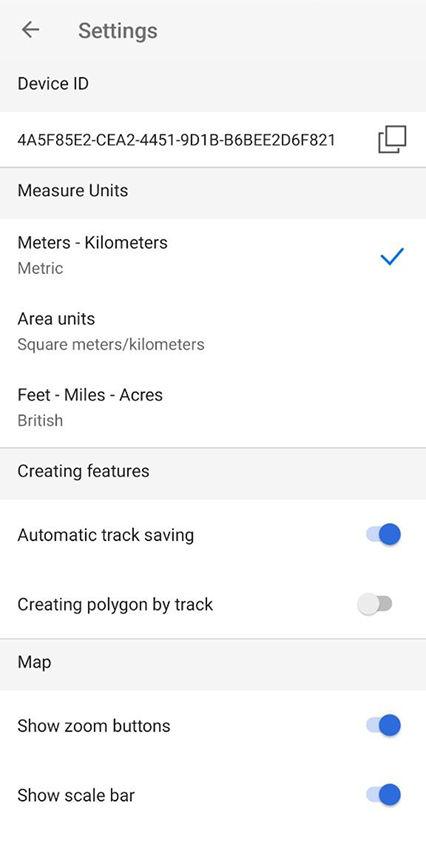
|
In this window, you can change the general settings of the application and find out information about the device ID:
Device ID – viewing and copying information about the device ID, based on which the availability of cards limited by the device ID is determined (see Opening map ).
Measurement units – changing the measurement system:
-
Metric system (meters, kilometers):
- Area units:
- Square meters/kilometers,
- Hectares;
- British system (feet, miles, acres).
Creating features – settings for features creation in the application:
- Enable/disable automatic track saving after stopping recording. The changes are applied to the Record track and Create polygon by track tools.
- Hide or show the Create polygon by track button in the map window.
Map – changing the display of elements in the map window and working with map layers:
- Hide or show buttons to change the map scale.
- Hide or show the scale bar in the map.
- Hide or show the circular ruler in the map.
- Enable or disable screen lock while working with the application.
- Enable/disable cascade layer visibility toggling for CMF2 maps.
- Enable/disable the display of a buffer showing the accuracy of location on the map.
- Enable/disable the display of information from your device’s GPS/GLONASS receiver at your current location on the map.
Cache – data caching settings in the application:
- Maximum cache size - select the required cache size from the list.
- Clear the cache.
Icons – change the appearance of the icon display on the map of the pushpin and location:
- Pushpin - open the list and select the desired icon.
- My Location - open the list and select the appropriate icon.
Coordinate systems – selection of the design coordinate system with indication of UTM zones (WGS-84, NAD-83).