
-
CarryMap for Android
- About the app
- Application terminology
- Section 1. Getting started and configuring the app
- Section 2. Application data
- Section 3. Opening maps and creating projects
-
Section 4. Creating and editing features
- About GeoPackage
- Creating new features
- Creating features by coordinates
- Creating point feature by photo
- Creating points with single tap
- Recording track
- Selecting symbol when creating feature
- Adding attachments to feature
- Filling in fields using QR code
- Editing features
- Adding and viewing Z coordinates
- Section 5. Additional functionality
Adding maps and data to the application folder
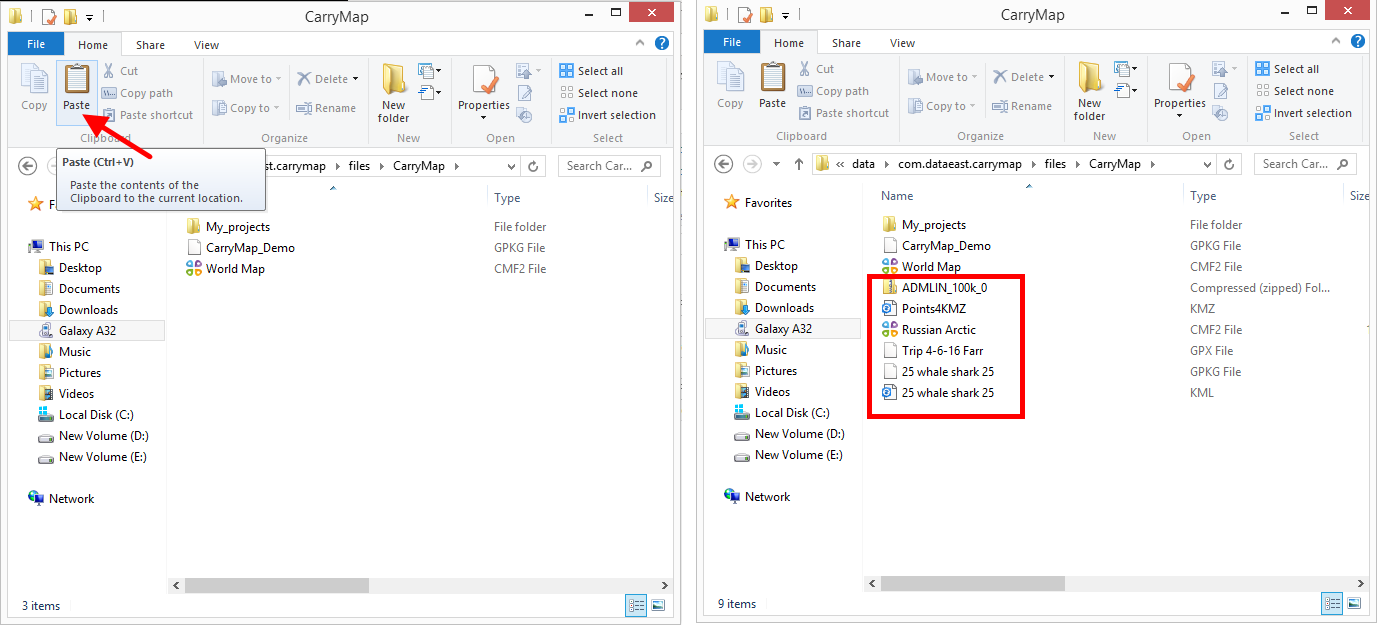
The CarryMap mobile application works directly with maps and data stored in the application folder. The location of the application folder depends on the Android version of your device. For devices with Android version 10 and below, the CarryMap folder is located in the internal storage of the device, and for devices with Android version 11 and above – in the application system folder (Android/data/com.dataeast.carrymap/files/CarryMap).
To add a CMF2 or MBTILES mobile map or data layers from GeoPackage, KML/KMZ, GPX, SHP files to the application folder, transfer it from PC to your mobile device using the standard tools of your device's file manager, import data from cloud storage (OneDrive, Google Drive, Dropbox, etc.), send data via email clients or messengers.
Transferring information from a PC to your mobile device
Connect your mobile device to your PC.
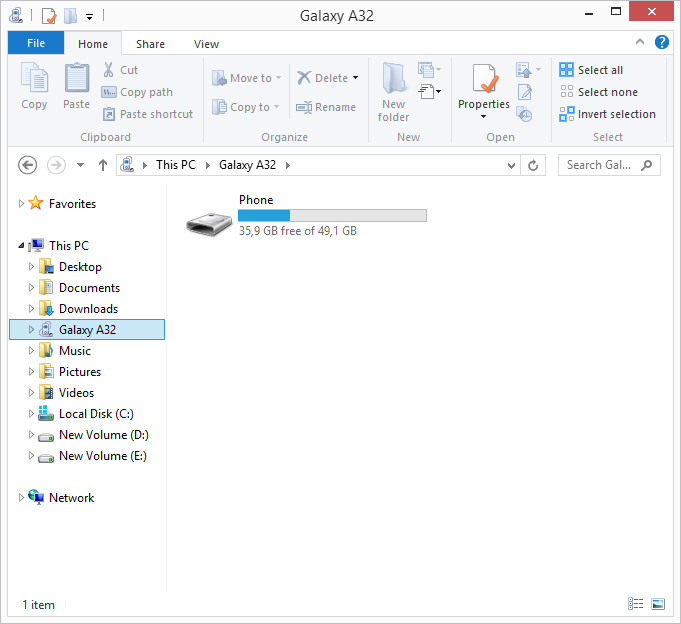
|
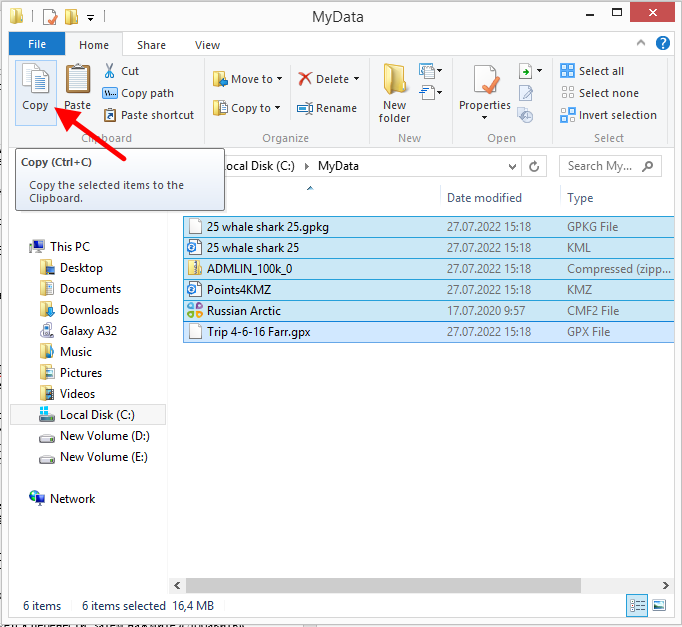
Navigate to the data folder on the PC. Copy the necessary files.
|
Navigate to the connected mobile device. Paste the selected files into the application folder.
|
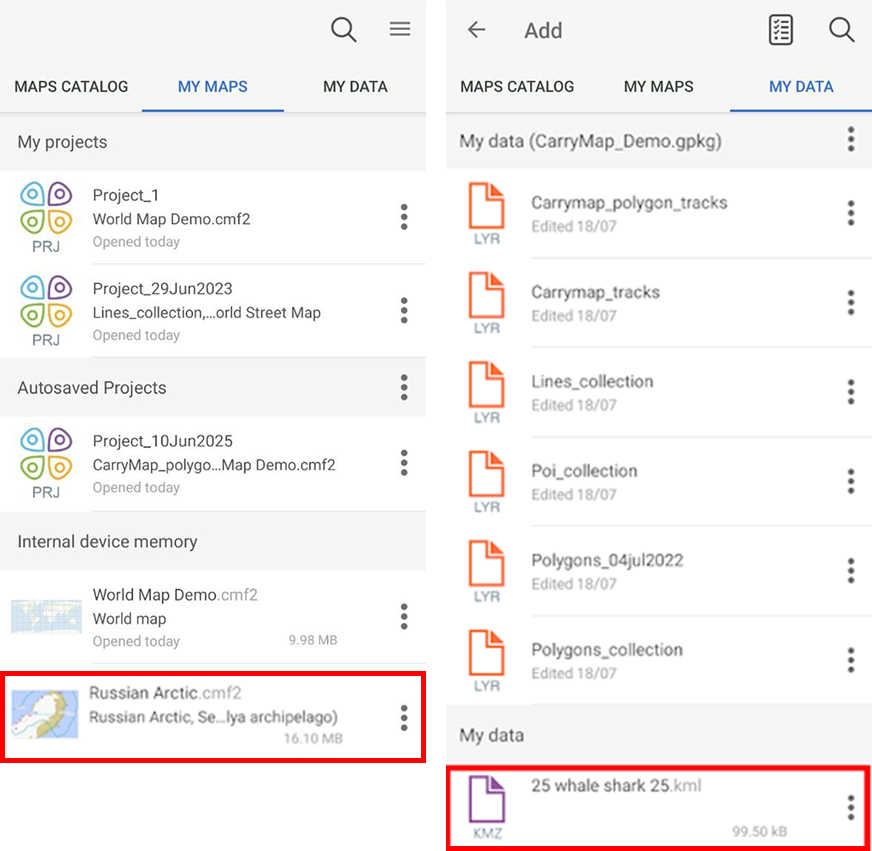
Open the CarryMap app on your mobile device. The copied data will be displayed in the corresponding sections.
|
Data transfer by standard means of file managers
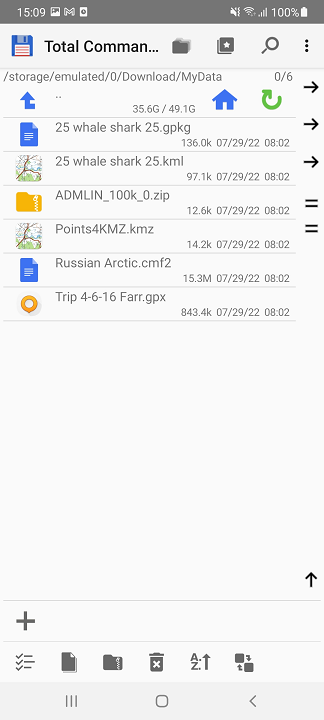
Open a file manager (for example, Total Commander) on your mobile device. Navigate to the data folder.
|
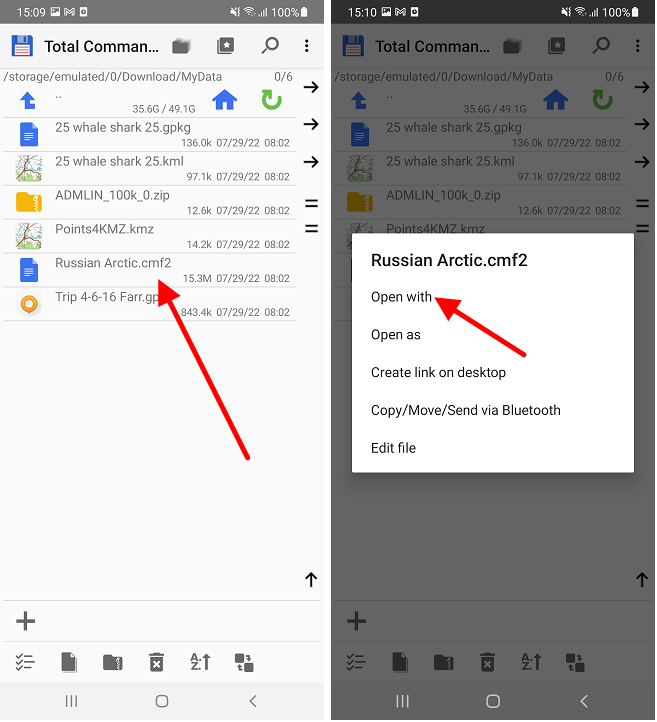
Select the file to add to the CarryMap application. In the context menu, select "Open with".
|
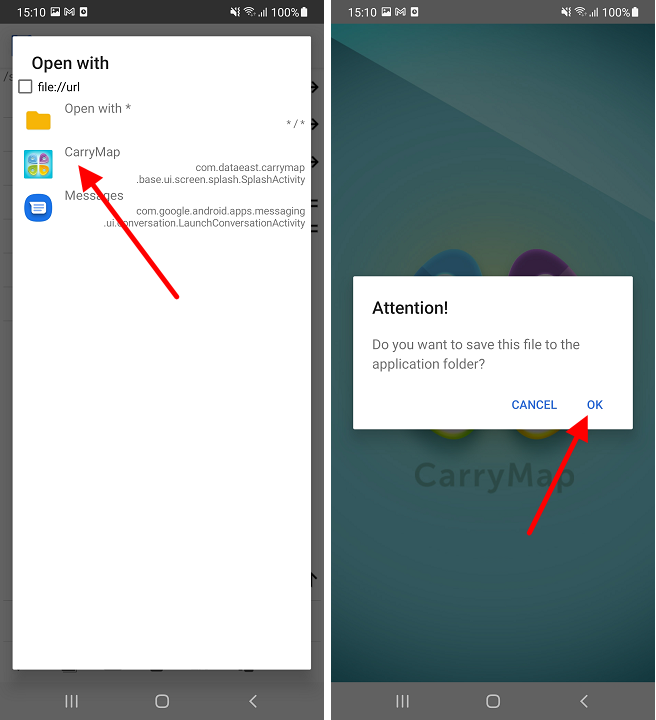
In the list provided, select CarryMap. Save the file.
|
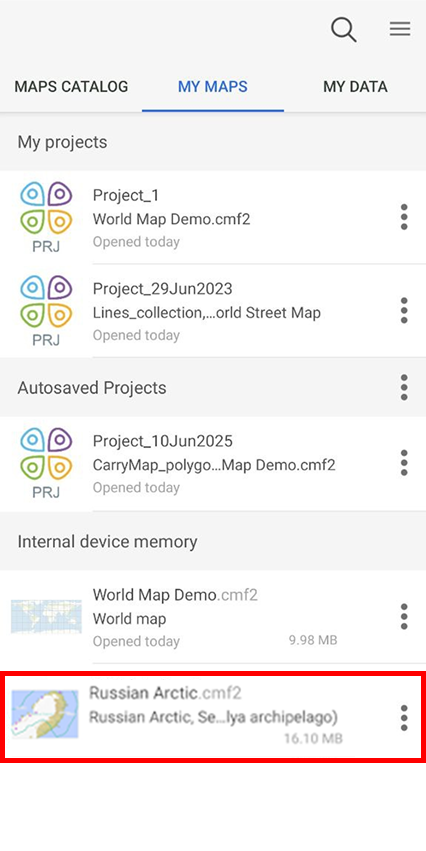
The data will be added to the library of the CarryMap application.
|
NOTE: The behavior in the file managers installed on your mobile device may differ from the one described above and depends on the restrictions on the support of various data formats in a particular application.
Importing data from cloud storage
Please note that importing data from cloud storage is only possible if you have access to the Internet.
Open a cloud storage (for example, OneDrive) on your mobile device.
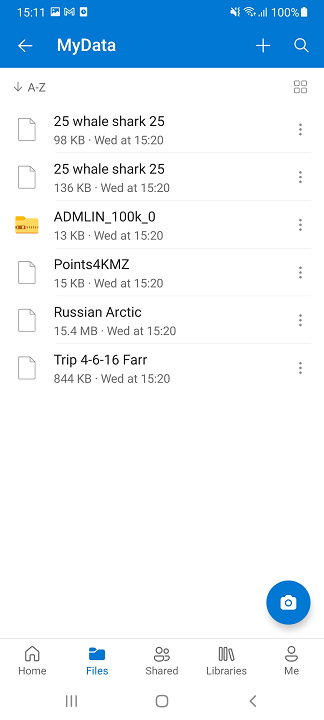
|
Select the file to add to the CarryMap application.
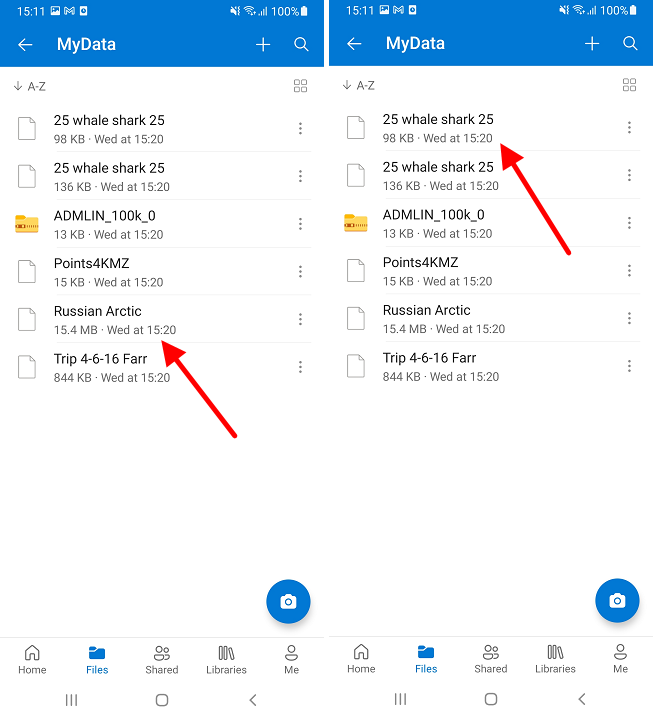
|
In the list of programs to open, specify CarryMap. Save the file.
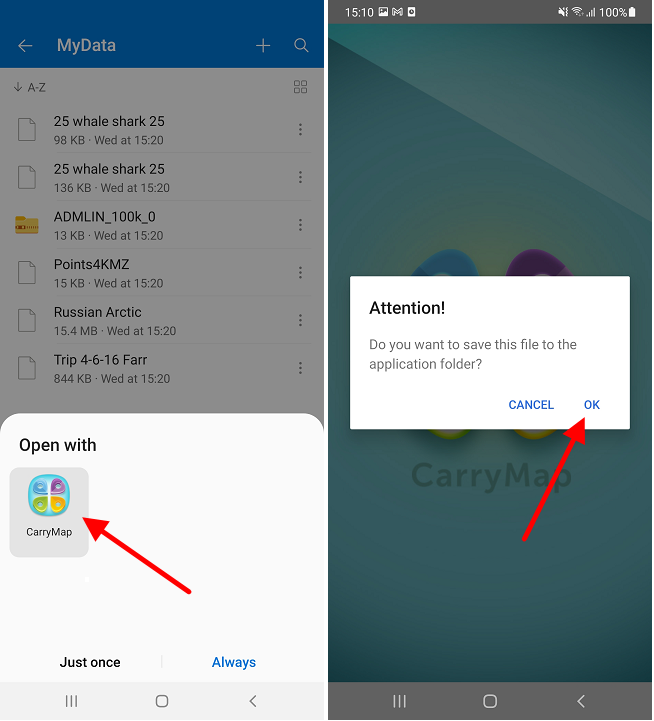
|
The data will be added to the library of the CarryMap application.
|
|
NOTE: The behavior in different cloud storages may differ from the one described above.