
Measuring on the map
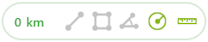
To measure on the map, tap the Measurements button.
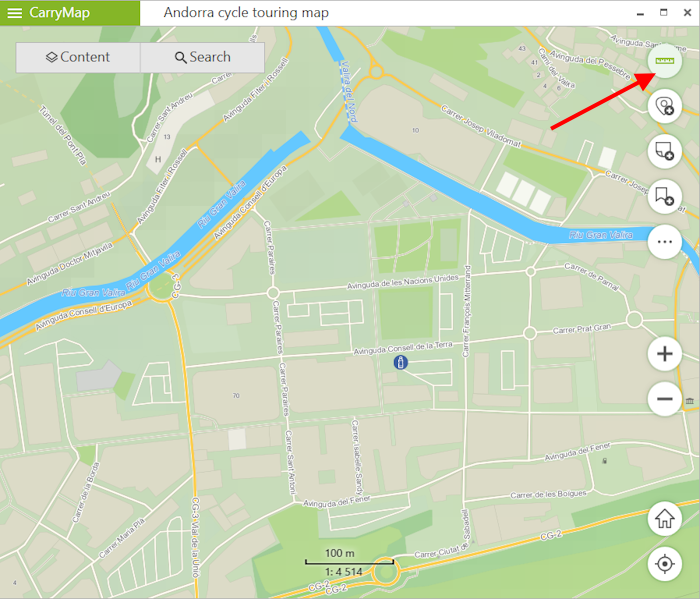
|
If you want to measure distance, tap Measure distance icon.
|
If you want to measure area, tap Measure area icon, accordingly.
|
If you want to measure geographic azimuth, tap Measure azimuth icon.
|
If you want to measure radius of a circle, tap Measure radius icon.
|
Measuring distance and area
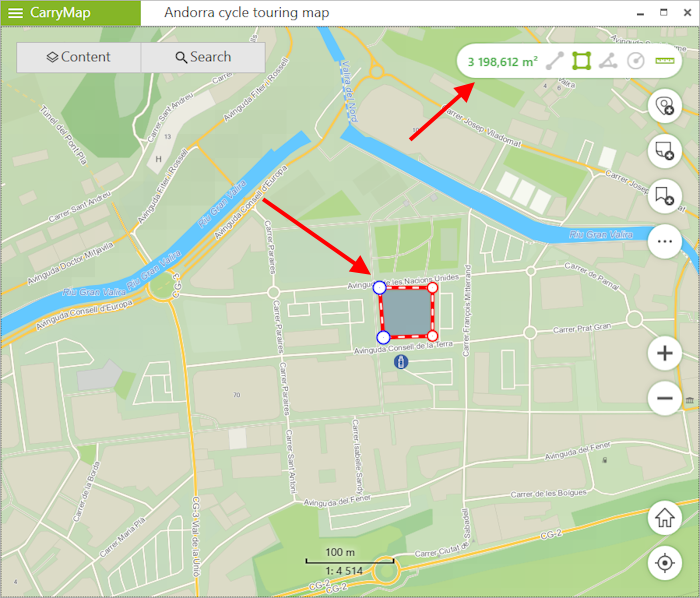
To start measurement, sequentially tap the map adding points.
The calculated distance or area will be shown in the upper part of the measurement window.
|
To delete the needless point, tap it again.
Measuring the geographic azimuth
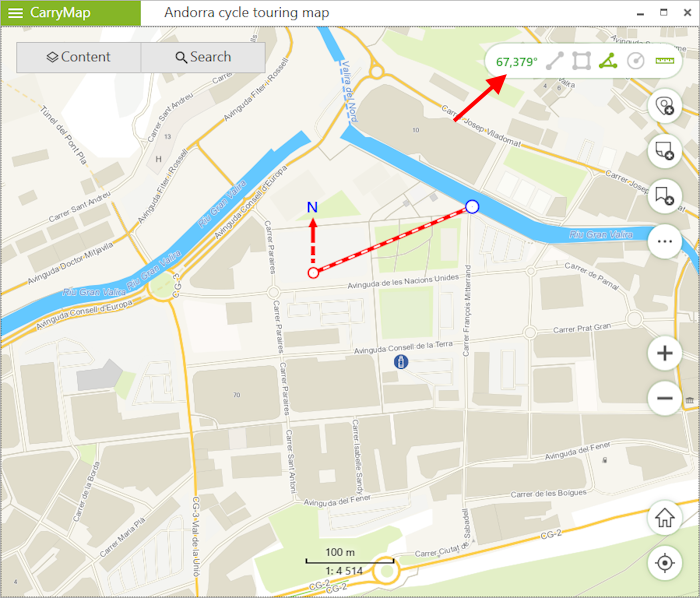
To start measurement, sequentially add two points on the map.
The calculated value will be shown in the measurement window.
|
Measuring the radius of a circle
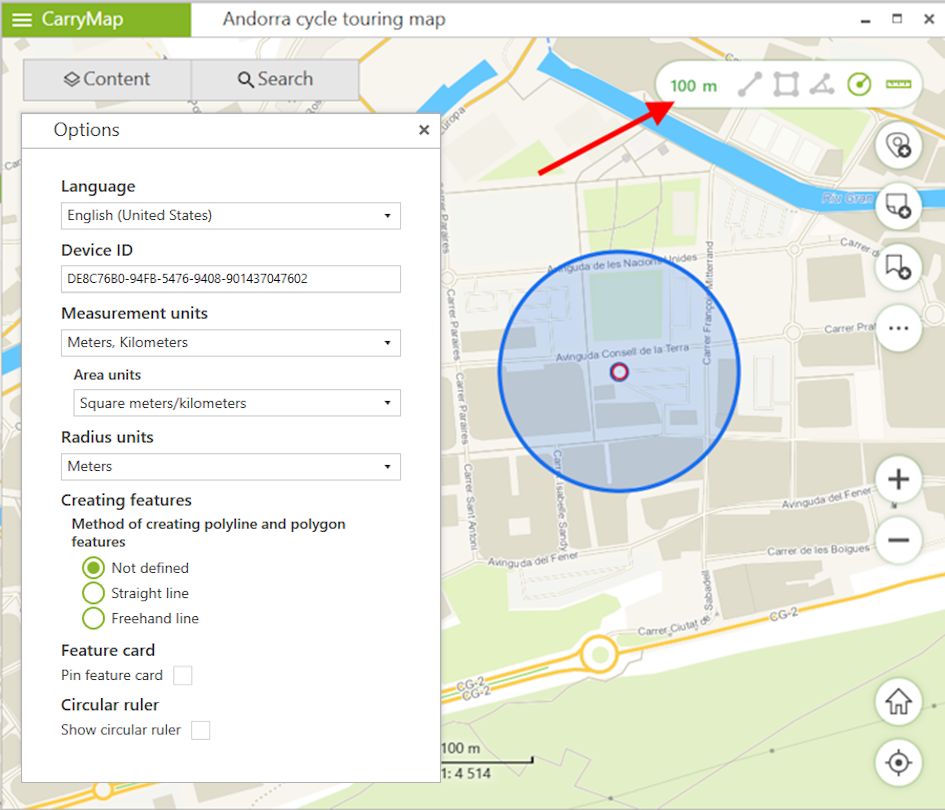
To start measurement, add a point on the map and enter the radius value in the measurement window.
|
To change measurement units for distance, areas or circle radius, go to Application settings . In the Measure units section select the required units:
-
Metric system (meters, kilometers):
- Area units:
- Square meters/kilometers,
- Hectares;
- British system (feet, miles, acres).