
Creating features
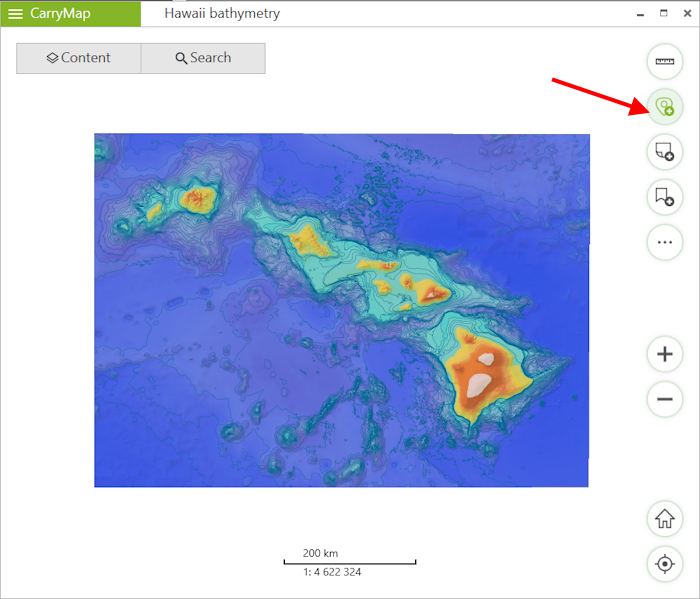
To create a new feature on map, press Create feature.
|
In the appeared panel select the feature type: point, polyline or polygon.

|
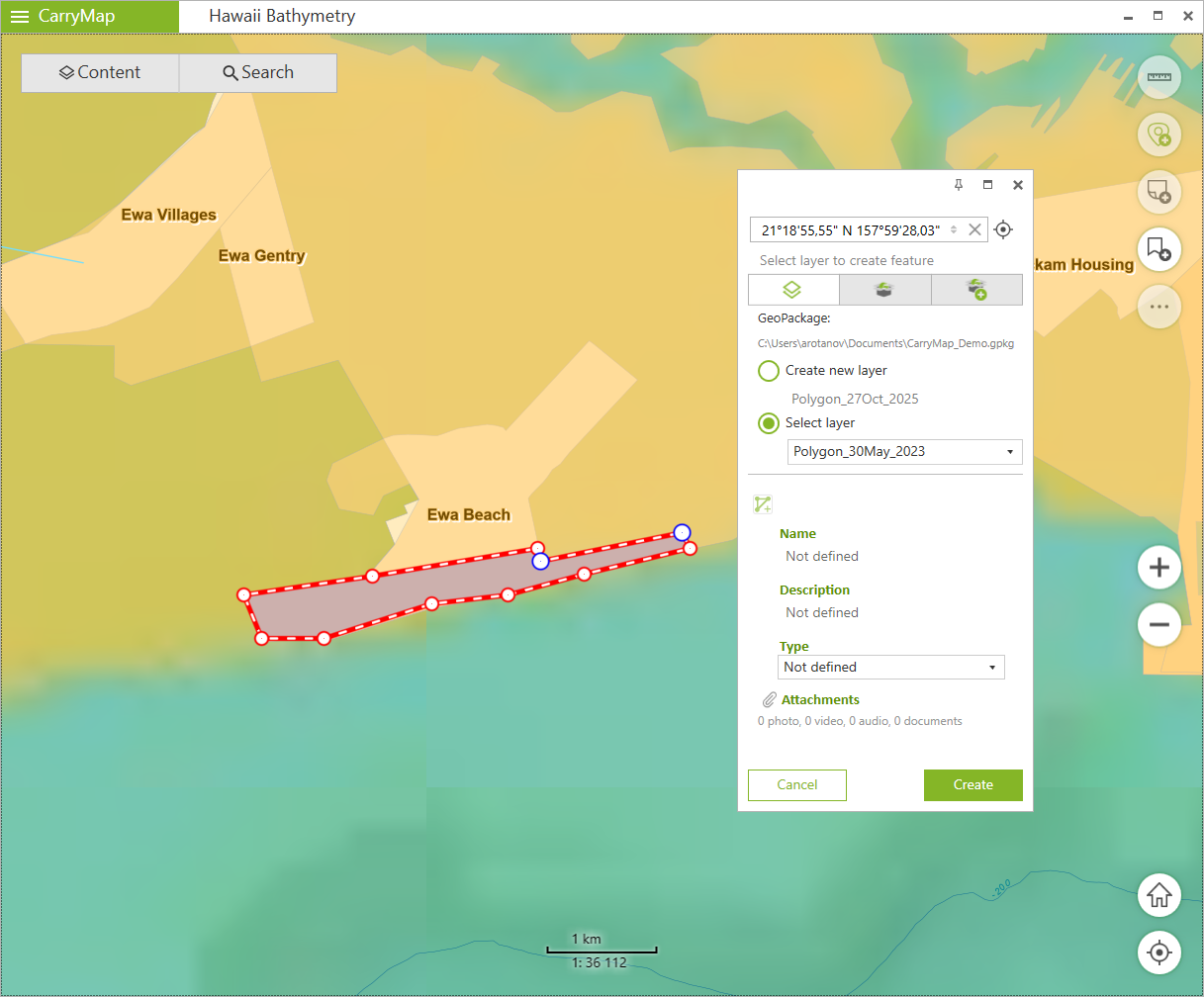
Specify geometry of the created feature on the map.
Note that you can select the method of creating polyline and polygon features on the map: with the straight or the freehand line (see Creating features by drawing freehand line section for more detail).
|
In the appeared dialog select the layer, where to the feature geometry should be saved.
The output layer for copying features can be specified as following:
-
Map layers
– create feature to a specified layer added to the current project or create a new layer in the default GeoPackage file.

-
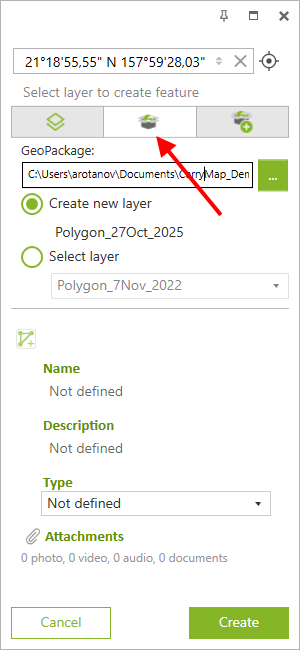
Select file
– create feature to a specified or a new layer in a GeoPackage file selected from disk.
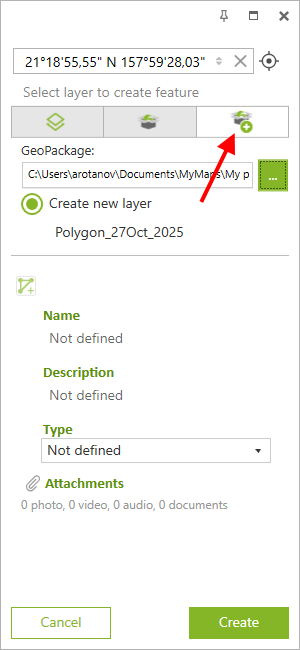
- Create file – create a layer to save feature in a new GeoPackage file.
|
Note that only numbers and Latin letters can be used.
To set name for the new feature, click on the Name field. After you enter the name, this field will be marked with an asterisk.
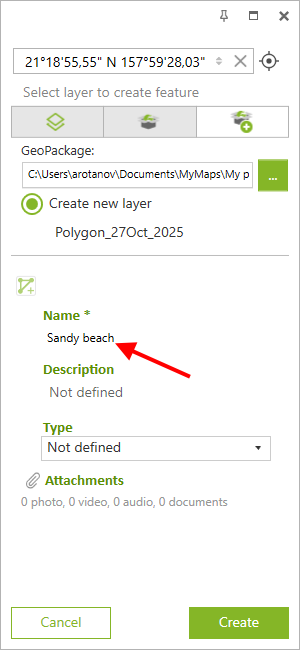
|
To add description to the new feature, click on the Description field and enter the required info.
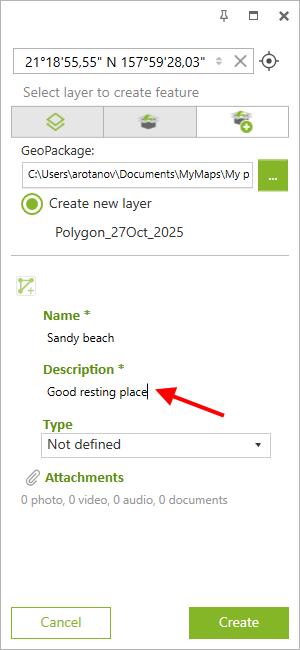
|
To set the symbol for the feature, click on the Type field and select the category from the list. The feature will be displayed on the map with the selected symbol after the changes are saved.
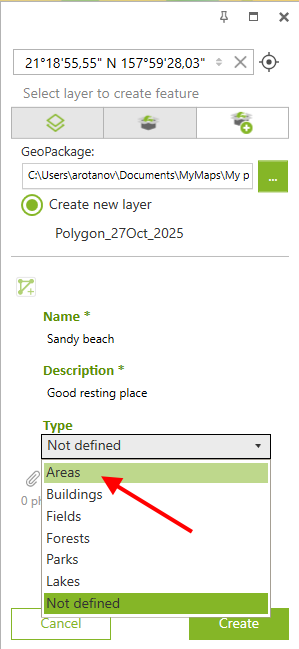
|
To finish the feature creation process, press Create .
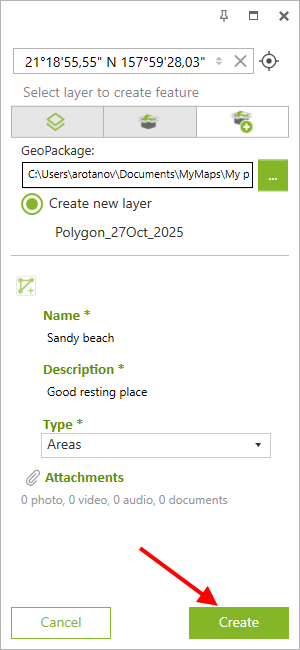
|
Creating features by drawing freehand line
To create a new polyline or polygon feature on the map by drawing the freehand line, press Create feature .
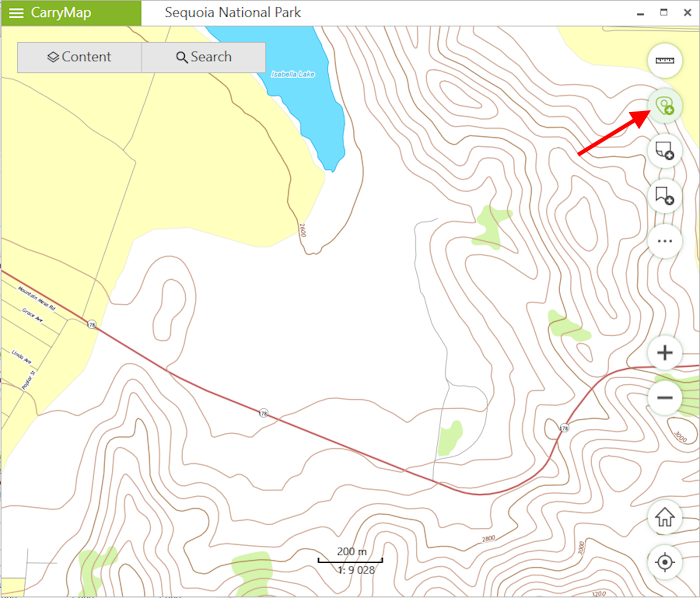
|
In the appeared panel select the type of created feature: polyline or polygon.

|
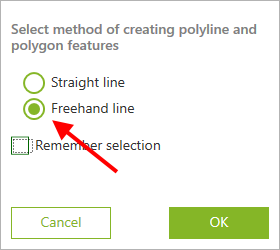
In the appeared window select Freehand line and press OK button.
|
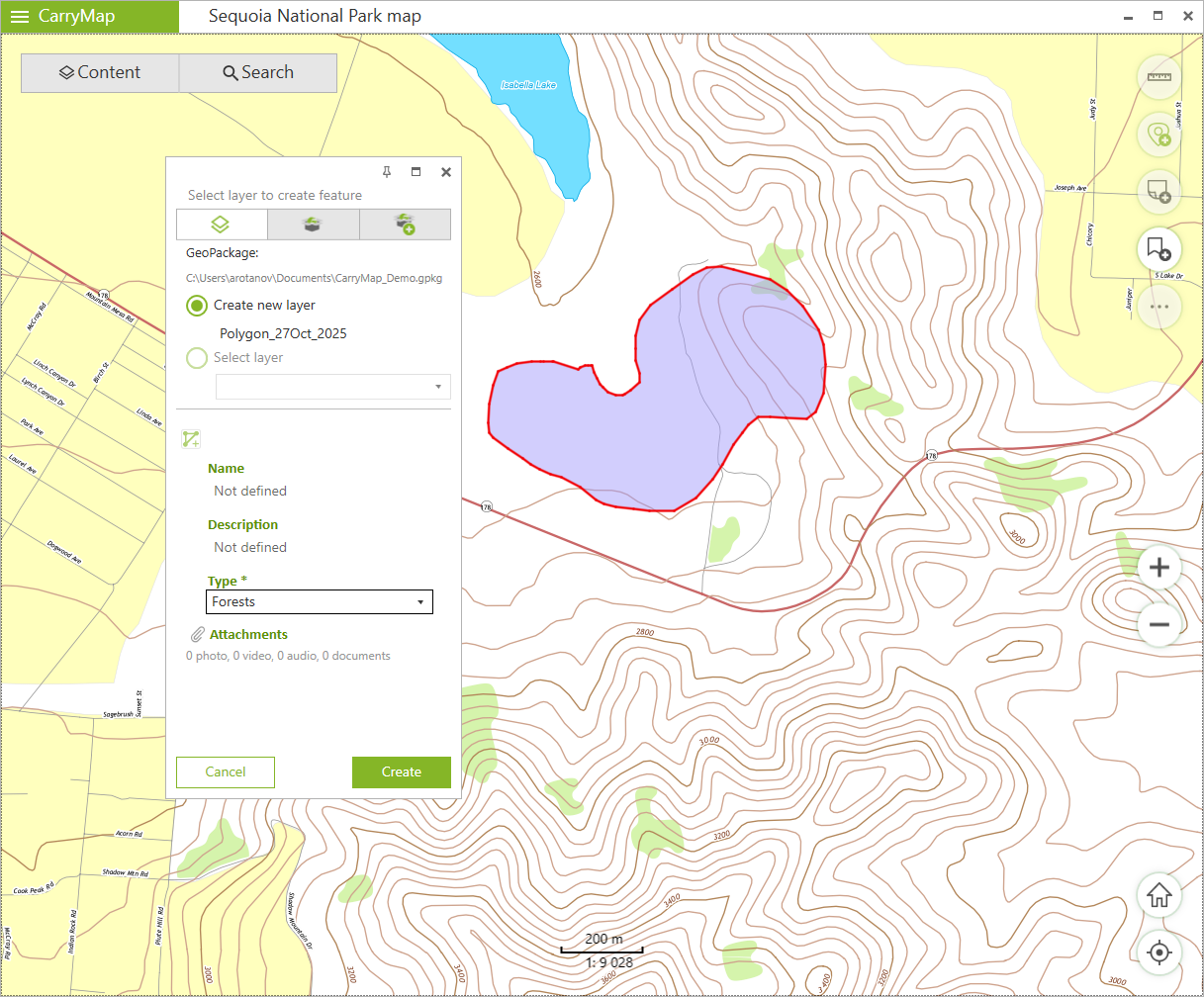
Draw the feature on the map.
|
To finish the feature creation process, press Create .
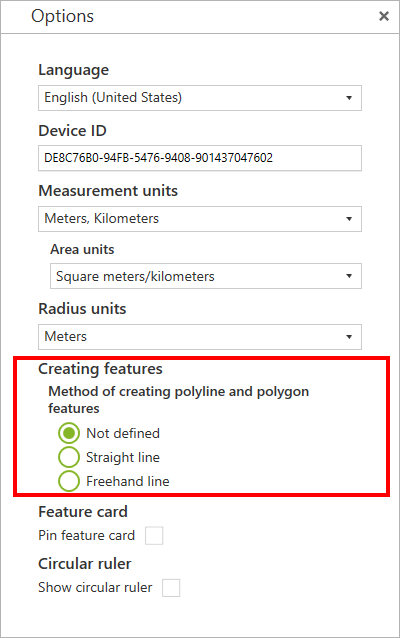
To change the method of creating polyline or polygon features, go to Application settings . In the Method of creating polyline and polygon features select:
- Not defined;
- Straight line;
- Freehand line.
|