
Searching for features
To search for features or to go to specific coordinates on the map, select Search tab in the upper left corner.

|
Enter your search request in the search field
 and press
Enter
on the keyboard or press the search icon. The search results will be shown in the
Search
window.
and press
Enter
on the keyboard or press the search icon. The search results will be shown in the
Search
window.
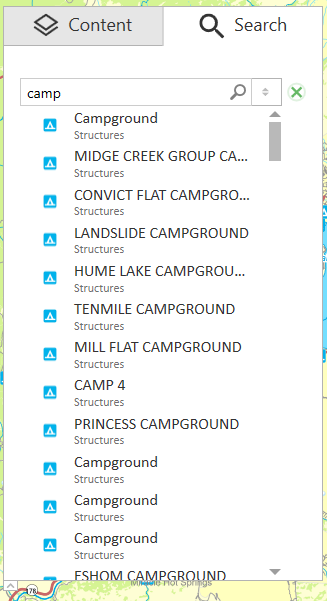
|
To zoom to the feature on the map and to identify it, select this feature clicking on it in the search results list.
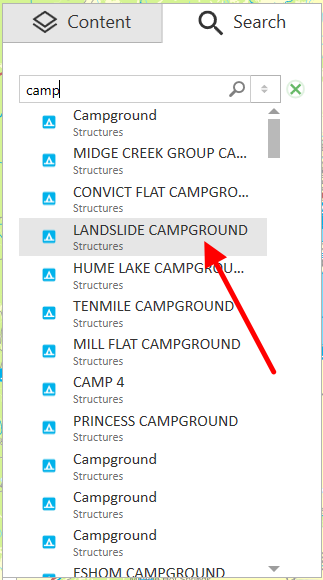
|
Selected feature will be marked with the pushpin on the map and its identification card will be shown near.
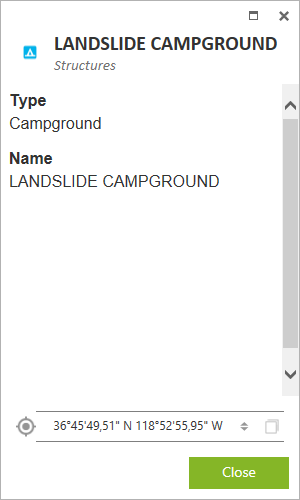
|
To perform accurate search, enter the ‘!’ sign in the beginning of your search query. Unlike with simple search, with the accurate search option you can search not only for the separate word, but also for the whole phrase. This new option will simplify searching through big arrays of numerical and text data.
To go to coordinates, press Switch button in the search field.

|
The field for entering coordinates in DMS format will appear.

|
Enter the coordinates values and press
Search
 . The entered coordinates will be marked on the map with the pushpin icon
 .
.
To go to coordinates in DD format, press Switch button in the search field again.

|
Enter Y (latitude) and X (longitude) coordinates and press
Search
. The entered coordinates will be marked on the map with the pushpin icon
.